
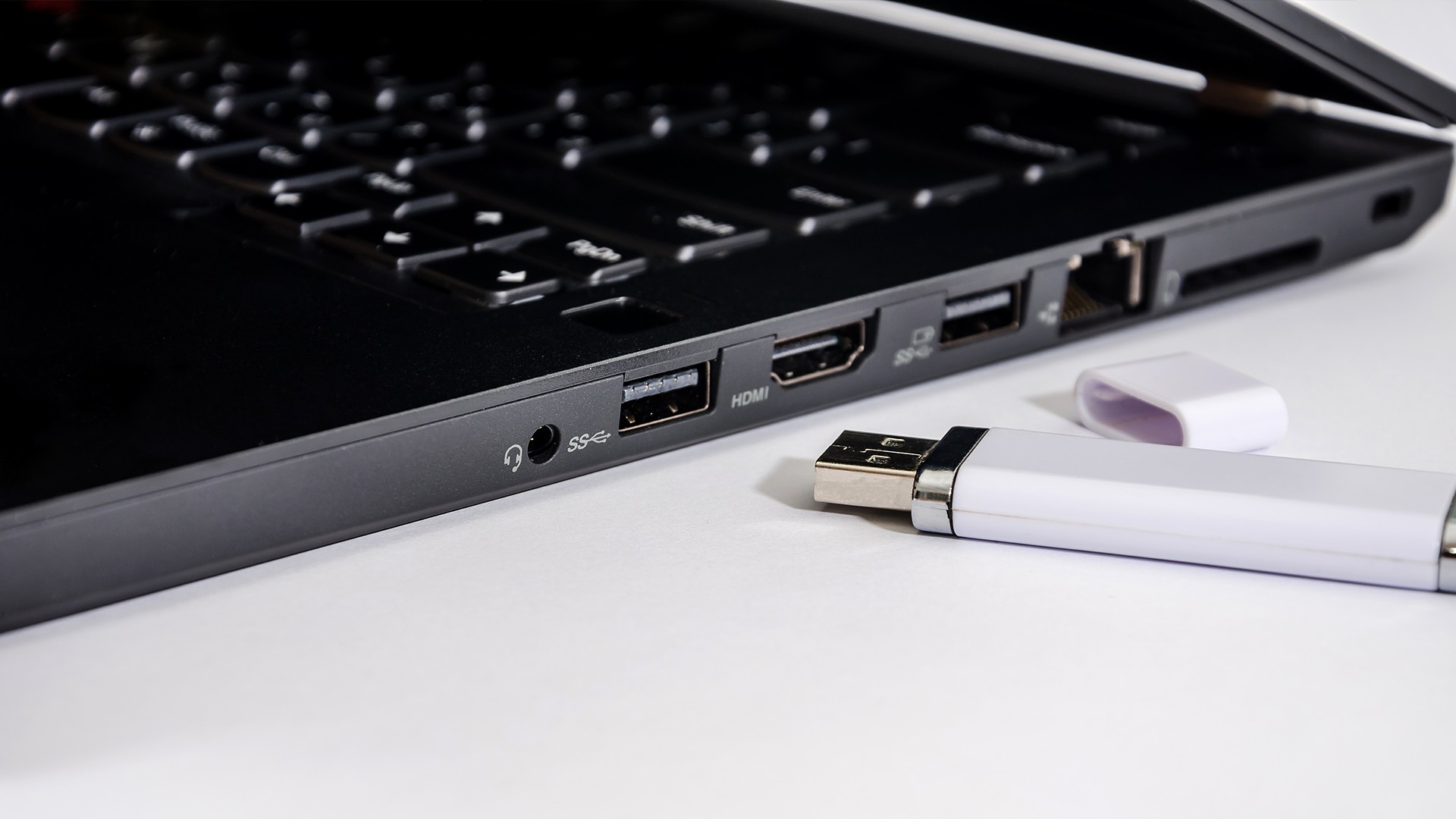
Do you have many ports on your laptop and don’t know the function of each one or how to use them correctly?
In this article, we will discuss in detail the importance of laptop ports, their different types, the differences between them, and the optimal use for each. Ports play a crucial role in enhancing and expanding the capabilities of a laptop. Get ready for a brief journey to discover the ports on your laptop and how to improve your user experience through them.
The Importance of Laptop Ports and Their Various Types
Laptop ports serve as a crucial bridge and connecting tool between the laptop and external complementary devices that help enhance its capabilities and perform various tasks, such as printers, scanners, and others, thus meeting the diverse needs of the user. However, each port has a specific use and function. Here are the most important types of laptop ports:
USB Port:
The Universal Serial Bus (USB) port is one of the most vital and widely used ports on a laptop. It is considered a super tool that enhances the device’s effectiveness as it provides an efficient means of communication between different devices. Additionally, it helps transfer data and power simultaneously and efficiently between connected devices, such as flash drives, keyboards, and others and There are many types, each with its own unique features and uses. They are as follows:
USB Type-A:
This is the most well-known type because it is widely used in electronic devices in general. It has a rectangular shape with flat edges and can only be connected in one direction. It has 4 pins. It comes in several versions, each with its own transfer speed, such as (USB 1.1) with a speed of up to 12 Mbps, (USB 2.0) with a transfer speed of up to 480 Mbps, and (USB 3.0) which features a transfer speed of up to 5 Gbps. The USB Type-A port has a feature called backward compatibility, which means that older devices can be used with modern ports. It is also used for power transfer and charging tablets, smartphones, and other devices.
USB Type-B:
One of the USB port versions with different features. It comes in a rectangular shape with symmetrical pins and is considered more durable and resistant to wear and tear. It also features strong charging power and has 9 pins. It is used to connect printers, scanners, and some other devices like external drives.
There is often a smaller version called Micro-B used with small electronic devices like smartphones and cameras. Another slightly larger version called Mini-B has 5 pins and a rectangular shape, which transfers data between devices and charges power.
USB Type-C:
A type of USB port version, with a small size, symmetrical shape, and advanced unique design. It is easy to use as it can be connected without looking and is multifunctional, capable of transferring data, video, charging, and connecting peripheral devices. It can deliver power up to 100 watts, thus charging devices faster. Additionally, it can connect high-definition displays.
HDMI Port: The Optimal Connection for Your Device
One of the important ports, HDMI is an acronym for “High-Definition Multimedia Interface”. It is a digital interface for transmitting high-definition audio and video without compression and without loss of quality. This is achieved through a single cable, eliminating the need for multiple different cables. It is widely used with electronic devices such as computers, televisions, gaming consoles, and others.
Additionally, it supports 4K and 8K resolutions with high frame refresh rates and supports HDR and Dolby Vision technologies, providing an amazing and colorful viewing experience. Furthermore, it can transmit multi-channel audio, such as Dolby Atmos, delivering a unique audio experience.
It also includes the (ARC) technology, which allows audio to be transmitted from the television to the audio receiver through a single cable. Additionally, it has the (CEC) feature to control devices connected to the HDMI port using the television’s remote control
There are Four versions:
- HDMI 1.0: This is the first version, launched in 2002. It supports 1080p resolution at a 60Hz frame refresh rate. It does not support Audio Return Channel (ARC) or Consumer Electronics Control (CEC).
- HDMI 1.3: Released in 2006, it supports 1080p resolution and a 120Hz frame refresh rate. It supports Audio Return Channel (ARC).
- HDMI 1.4: Launched in 2009, it supports 4K resolution (3840×2160) at 30Hz. It also supports Consumer Electronics Control (CEC).
- HDMI 2.0: Launched in 2014, it supports 4K resolution (3840×2160) at a 120Hz frame refresh rate and a data transfer rate of up to48Gbps.
Thunderbolt Port: Power and Efficiency in Connectivity
The Thunderbolt port is an advanced technology developed in collaboration between Intel and Apple, offering a seamless user experience and reducing clutter. It enables ultra-fast data and media transfer speeds of up to 40 gigabits per second through a single cable and supports unique technologies such as Daisy Chaining, which allows multiple devices to be connected through one port.
As a result, this port is ideal for professional users due to its high performance and efficiency.
Ethernet Port: Fast and Reliable Connection
This port is an excellent choice for users who need high-performance network connectivity. It serves as a network interface that allows electronic devices to connect to network devices and is considered a standard in the world of wired networks. It ensures a fast and reliable connection between devices. It offers the ability to provide a secure and stable connection, reducing interference issues compared to wireless connections, thus lowering the risk of unauthorized access and offering great flexibility in use and adaptation to various network needs.
Additionally, it provides high data transfer speeds of up to 10 gigabits per second. Furthermore, Ethernet cables are known for their low cost compared to other connection technologies.
In conclusion, after discussing the most important laptop ports, you can enhance your laptop usage experience through these ports, thereby increasing work efficiency and ease of use by:
- Using appropriate ports.
- Using an adapter if the needed port is not available.
- Connecting audio devices through an audio port to achieve high-quality sound.
- Organizing the ports to find them easily. Additionally, try to keep them clean regularly and use port protectors to prevent damage and dirt. By effectively utilizing the ports, you will be able to enhance your device’s performance and increase your productivity
